Tayogo Upgrade Firmware
When Upgrade Firmware:
You should consider upgrading the firmware in the following scenarios:
1. Bug Fixes: It can't play well,If the current firmware has known issues or bugs that are resolved in the update.
2. Improved Performance: The Mp3 or headset cant power on,To enhance the performance, stability, or security of the device.
3. Upgrade the W16 to W16R, then the W16 will compatible with Tayogo T6 wireless transmitter.
Please download the firmware as per the model, read the instruction, set up the tool, then burn the firmware.
 W24 UPGRADE FIRMWARE
 W24 UPGRADE FIRMWARE
Click and Download the Upgrade Firmware
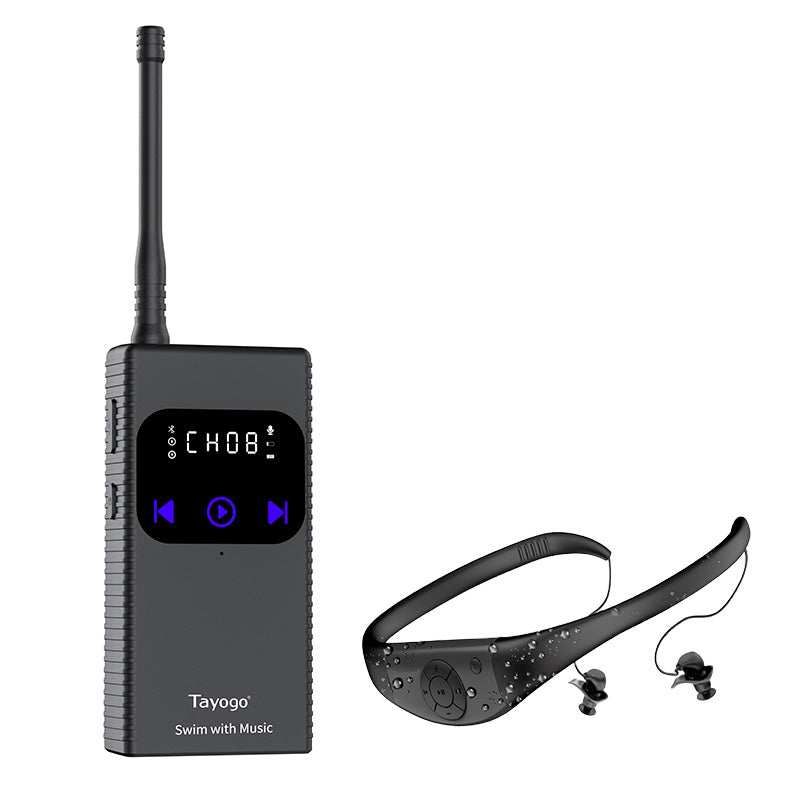 How to Upgrade W16 to W16R receiver
 How to Upgrade W16 to W16R receiver
Click to Download the Upgrade firmware
 W22 UPGRADE FIRMWARE
 W22 UPGRADE FIRMWARE
W22 Model: DOWNLOAD
 W18 UPGRADE FIRMWARE
 W18 UPGRADE FIRMWARE
W18 MODEL:
1. For the model with 8GB : The file is too large to download. Please contact the Tayogo customer service team for assistance at:cs@tayogo.com
2. For the Model with 32GB: click to DOWNLOAD
 W16 UPGRADE FIRMWARE
 W16 UPGRADE FIRMWARE
W16 MODEL : The file is too large to download. Please contact the Tayogo customer service team for assistance at : cs@tayogo.com
 W8 UPGRADE FIRMWARE
 W8 UPGRADE FIRMWARE
W8 MODEL : The file is too large to download. Please contact the Tayogo customer service team for assistance at:cs@tayogo.com
 W01 UPGRADE FIRMWARE
 W01 UPGRADE FIRMWARE
W01 MODEL : The file is too large to download. Please contact the Tayogo customer service team for assistance at:cs@tayogo.com
 W02 UPGRADE FIRMWARE
 W02 UPGRADE FIRMWARE
W02 MODEL : The file is too large to download. Please contact the Tayogo customer service team for assistance at:cs@tayogo.com
 W12 UPGRADE FIRMWARE
 W12 UPGRADE FIRMWARE
W12 MODEL : The file is too large to download. Please contact the Tayogo customer service team for assistance at:cs@tayogo.com
 W11 UPGRADE FIRMWARE
 W11 UPGRADE FIRMWARE
W11 MODEL : The file is too large to download. Please contact the Tayogo customer service team for assistance at:cs@tayogo.com
 W10 UPGRADE FIRMWARE
 W10 UPGRADE FIRMWARE
W10 MODEL : The file is too large to download. Please contact the Tayogo customer service team for assistance at:cs@tayogo.com
Important : The Multimedia Product Tool is compatible with all Tayogo products. But , Different models, please select the corresponding upgrade Fireware
How to Multimedia Product Tool
Use this text to share information about your brand with your customers.
How to Install the upgrade firmware
Tayogo W18 4-in-1: Upgrade for the New Tayogo App
Published November 4, 2026. Update compatible W18 4-in-1 headphones using a computer and the supplied firmware, then connect to the new Tayogo app.
For W18 4-in-1 only. Do not use this package on W18 3-in-1, other W18 variants, W23, W24, W25 or T6. Unsure which model you own? Contact cs@tayogo.com before updating.
Download W18 4-in-1 Firmware + English Instructions (ZIP)
Download the detailed English upgrade guide (TXT)
Before you start
Fully charge your headphones, keep the headphones and cable contacts dry, and back up your music. Use a computer and a compatible USB data cable. This procedure copies a file to headphone storage; it is not a Bluetooth OTA update in the app.
Step-by-step upgrade instructions
-
Download and extract the ZIP on your computer. Locate
update.ufwinside. Do not copy the ZIP itself to the headphones. - Connect the headphones to your computer and open the headphone drive.
-
Copy
update.ufwto the root directory of the headphone drive: the top level you see when opening the drive, not inside a music folder or any other folder. Keep the filename exactlyupdate.ufw. Do not rename it or use a name such asupdate (1).ufw. - Wait for copying to finish. Safely eject the headphone drive, disconnect the USB cable, and turn on the headphones. The upgrade starts automatically.
- Wait for the completion chime. Initially there is no sound and no indicator light during this procedure. The supplied instructions specify approximately one minute. Do not press buttons, force a restart or interrupt power. A two-note “ding-ding” chime indicates completion; silence or an unlit light alone does not.
-
Reconnect to the computer and DELETE
update.ufwfrom the headphone drive. This is essential: leaving the file on the drive causes repeated upgrades. Confirm the file is no longer present. - Safely eject, disconnect and turn on the headphones again. The procedure is complete.
Connect to Tayogo
Install the new Tayogo app for iPhone and iPad or Tayogo app for Android on Google Play. Enable Bluetooth and grant Bluetooth/Nearby devices access when requested, then add your W18 in the app.
For phone music, also select the W18 as your phone’s Bluetooth audio output. An app control connection alone does not confirm that phone audio is routed to the headphones. Check playback, volume and supported controls after updating.
Troubleshooting
- No headphone drive: check the USB data cable and connection. Do not format or erase the drive to make it appear.
- Update does not start: check the exact filename and root-directory placement.
-
Upgrade repeats: after completion, remove
update.ufwfrom the headphone drive. - No completion chime: do not repeatedly force restarts or reflash. Contact cs@tayogo.com with your model and symptoms.
File verification
Firmware: update.ufw
Size: 2,094,752 bytes
SHA-256: fa3998afa648ee6ef4a64404c949579b4f3298854cd7408dd4e0454e359e211b
The publication date identifies this download package, not a firmware version.
Legacy firmware instructions — use only when directed by Tayogo Support
The instructions below are for other legacy update procedures. They are not the W18 4-in-1 USB-copy procedure above.
Important: Most current Tayogo products do not require firmware updates. Only use this guide when Tayogo Support has confirmed that an update is needed for your exact model. Installing an incorrect firmware file may stop the device from working.
Before you begin, contact cs@tayogo.com with your product model and order information. Tayogo Support will provide the correct firmware file and confirm whether this procedure applies to your device.
How to install a Tayogo firmware update
Run the tool: Click [Start] -> [Programs] -> [Actions Tools].

When running the tool for the first time, the following window will appear:
Firmware Replacement Interface
Click the "Choose New" button to open the firmware selection interface and choose the required firmware file.


Select the firmware and click "Open" (as shown in the image). The upgrade firmware will then be successfully loaded and ready for use.
三:Preparing for Software Update:
Once the device is connected, its status indicator will turn green, indicating readiness. At this stage, the "DOWN" button becomes active, but the firmware download has not started yet. The interface will appear as shown in the illustration.
After clicking the "DOWN" button, the production tool will begin downloading the firmware to the device. A progress bar will display the percentage of the firmware download, while the production time is shown on the right side of the progress bar. The interface will appear as shown in the illustration.


Use this text to share information about your brand with your customers.
Tayogo W18 4-in-1: Upgrade for the New Tayogo App
Published November 4, 2026. Update compatible W18 4-in-1 headphones using a computer and the supplied firmware, then connect to the new Tayogo app.
For W18 4-in-1 only. Do not use this package on W18 3-in-1, other W18 variants, W23, W24, W25 or T6. Unsure which model you own? Contact cs@tayogo.com before updating.
Download W18 4-in-1 Firmware + English Instructions (ZIP)
Download the detailed English upgrade guide (TXT)
Before you start
Fully charge your headphones, keep the headphones and cable contacts dry, and back up your music. Use a computer and a compatible USB data cable. This procedure copies a file to headphone storage; it is not a Bluetooth OTA update in the app.
Step-by-step upgrade instructions
-
Download and extract the ZIP on your computer. Locate
update.ufwinside. Do not copy the ZIP itself to the headphones. - Connect the headphones to your computer and open the headphone drive.
-
Copy
update.ufwto the root directory of the headphone drive: the top level you see when opening the drive, not inside a music folder or any other folder. Keep the filename exactlyupdate.ufw. Do not rename it or use a name such asupdate (1).ufw. - Wait for copying to finish. Safely eject the headphone drive, disconnect the USB cable, and turn on the headphones. The upgrade starts automatically.
- Wait for the completion chime. Initially there is no sound and no indicator light during this procedure. The supplied instructions specify approximately one minute. Do not press buttons, force a restart or interrupt power. A two-note “ding-ding” chime indicates completion; silence or an unlit light alone does not.
-
Reconnect to the computer and DELETE
update.ufwfrom the headphone drive. This is essential: leaving the file on the drive causes repeated upgrades. Confirm the file is no longer present. - Safely eject, disconnect and turn on the headphones again. The procedure is complete.
Connect to Tayogo
Install the new Tayogo app for iPhone and iPad or Tayogo app for Android on Google Play. Enable Bluetooth and grant Bluetooth/Nearby devices access when requested, then add your W18 in the app.
For phone music, also select the W18 as your phone’s Bluetooth audio output. An app control connection alone does not confirm that phone audio is routed to the headphones. Check playback, volume and supported controls after updating.
Troubleshooting
- No headphone drive: check the USB data cable and connection. Do not format or erase the drive to make it appear.
- Update does not start: check the exact filename and root-directory placement.
-
Upgrade repeats: after completion, remove
update.ufwfrom the headphone drive. - No completion chime: do not repeatedly force restarts or reflash. Contact cs@tayogo.com with your model and symptoms.
File verification
Firmware: update.ufw
Size: 2,094,752 bytes
SHA-256: fa3998afa648ee6ef4a64404c949579b4f3298854cd7408dd4e0454e359e211b
The publication date identifies this download package, not a firmware version.
Legacy firmware instructions — use only when directed by Tayogo Support
The instructions below are for other legacy update procedures. They are not the W18 4-in-1 USB-copy procedure above.
Important: Most current Tayogo products do not require firmware updates. Only use this guide when Tayogo Support has confirmed that an update is needed for your exact model. Installing an incorrect firmware file may stop the device from working.
Before you begin, contact cs@tayogo.com with your product model and order information. Tayogo Support will provide the correct firmware file and confirm whether this procedure applies to your device.
How to install a Tayogo firmware update
Run the tool: Click [Start] -> [Programs] -> [Actions Tools].
When running the tool for the first time, the following window will appear:
Firmware Replacement Interface
Click the "Choose New" button to open the firmware selection interface and choose the required firmware file.
Select the firmware and click "Open" (as shown in the image). The upgrade firmware will then be successfully loaded and ready for use.
三:Preparing for Software Update:
Once the device is connected, its status indicator will turn green, indicating readiness. At this stage, the "DOWN" button becomes active, but the firmware download has not started yet. The interface will appear as shown in the illustration.
After clicking the "DOWN" button, the production tool will begin downloading the firmware to the device. A progress bar will display the percentage of the firmware download, while the production time is shown on the right side of the progress bar. The interface will appear as shown in the illustration.
How to Install Tayogo Firmware Updates
Tayogo W18 4-in-1: Upgrade for the New Tayogo App
Published November 4, 2026. Update compatible W18 4-in-1 headphones using a computer and the supplied firmware, then connect to the new Tayogo app.
For W18 4-in-1 only. Do not use this package on W18 3-in-1, other W18 variants, W23, W24, W25 or T6. Unsure which model you own? Contact cs@tayogo.com before updating.
Download W18 4-in-1 Firmware + English Instructions (ZIP)
Download the detailed English upgrade guide (TXT)
Before you start
Fully charge your headphones, keep the headphones and cable contacts dry, and back up your music. Use a computer and a compatible USB data cable. This procedure copies a file to headphone storage; it is not a Bluetooth OTA update in the app.
Step-by-step upgrade instructions
-
Download and extract the ZIP on your computer. Locate
update.ufwinside. Do not copy the ZIP itself to the headphones. - Connect the headphones to your computer and open the headphone drive.
-
Copy
update.ufwto the root directory of the headphone drive: the top level you see when opening the drive, not inside a music folder or any other folder. Keep the filename exactlyupdate.ufw. Do not rename it or use a name such asupdate (1).ufw. - Wait for copying to finish. Safely eject the headphone drive, disconnect the USB cable, and turn on the headphones. The upgrade starts automatically.
- Wait for the completion chime. Initially there is no sound and no indicator light during this procedure. The supplied instructions specify approximately one minute. Do not press buttons, force a restart or interrupt power. A two-note “ding-ding” chime indicates completion; silence or an unlit light alone does not.
-
Reconnect to the computer and DELETE
update.ufwfrom the headphone drive. This is essential: leaving the file on the drive causes repeated upgrades. Confirm the file is no longer present. - Safely eject, disconnect and turn on the headphones again. The procedure is complete.
Connect to Tayogo
Install the new Tayogo app for iPhone and iPad or Tayogo app for Android on Google Play. Enable Bluetooth and grant Bluetooth/Nearby devices access when requested, then add your W18 in the app.
For phone music, also select the W18 as your phone’s Bluetooth audio output. An app control connection alone does not confirm that phone audio is routed to the headphones. Check playback, volume and supported controls after updating.
Troubleshooting
- No headphone drive: check the USB data cable and connection. Do not format or erase the drive to make it appear.
- Update does not start: check the exact filename and root-directory placement.
-
Upgrade repeats: after completion, remove
update.ufwfrom the headphone drive. - No completion chime: do not repeatedly force restarts or reflash. Contact cs@tayogo.com with your model and symptoms.
File verification
Firmware: update.ufw
Size: 2,094,752 bytes
SHA-256: fa3998afa648ee6ef4a64404c949579b4f3298854cd7408dd4e0454e359e211b
The publication date identifies this download package, not a firmware version.
Legacy firmware instructions — use only when directed by Tayogo Support
The instructions below are for other legacy update procedures. They are not the W18 4-in-1 USB-copy procedure above.
Important: Most current Tayogo products do not require firmware updates. Only use this guide when Tayogo Support has confirmed that an update is needed for your exact model. Installing an incorrect firmware file may stop the device from working.
Before you begin, contact cs@tayogo.com with your product model and order information. Tayogo Support will provide the correct firmware file and confirm whether this procedure applies to your device.
How to install a Tayogo firmware update
Run the tool: Click [Start] -> [Programs] -> [Actions Tools].
When running the tool for the first time, the following window will appear:
Firmware Replacement Interface
Click the "Choose New" button to open the firmware selection interface and choose the required firmware file.
Select the firmware and click "Open" (as shown in the image). The upgrade firmware will then be successfully loaded and ready for use.
三:Preparing for Software Update:
Once the device is connected, its status indicator will turn green, indicating readiness. At this stage, the "DOWN" button becomes active, but the firmware download has not started yet. The interface will appear as shown in the illustration.
After clicking the "DOWN" button, the production tool will begin downloading the firmware to the device. A progress bar will display the percentage of the firmware download, while the production time is shown on the right side of the progress bar. The interface will appear as shown in the illustration.
Quick link to locate the product in the store